
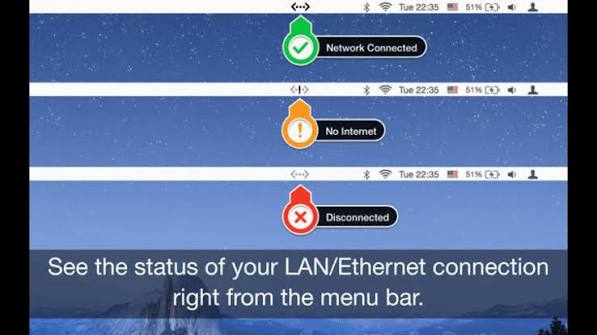
Free Download AppYogi Ethernet Status full version standalone offline installer for macOS. It allows you to see the status of Ethernet/LAN and other network interface connections right from the menu bar.
Overview of Ethernet Status for macOS
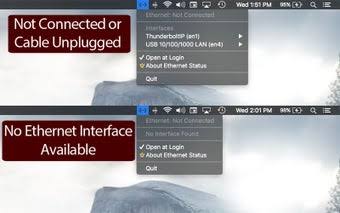
This software allows you to see the status of Ethernet/LAN and other network interface connections right from the menu bar. It adds a neat color (Green/Yellow/Red) icon on the menu bar that lets you know the connection status and other stats like your IP address, mac address, upload and download speed, data usage, etc.
Status of the following connections:
- Ethernet LAN
- WiFi
- Bluetooth Network
- iPhone/iPad USB Network
- Firewire
- Thunderbolt Network
Features of Ethernet Status
- See the Status, IP address, and speed of the Ethernet Adaptors
- Get the public IP address of your computer
- Thunderbolt and Firewire Support
- Retina Display enabled icons
- Shows IPv4 and IPv6 addresses
- Copy the IP / Mac address from the menu
- See the status of all active interfaces based on the user priority
- Option to see and copy IP / Mac of WiFi Adapter
- Upload and Download speed for each adapter
- Color icon to identify internet connection

Technical Details and System Requirements
- macOS 10.10 or later
FAQS
1. Auto start on system (re)start not working
There have been rare situations where auto start of the app on system (re)start does not work. In those scenarios add ‘Ethernet Status’ to ‘Login Items’ by opening ‘System Preferences’ and selecting ‘Users & Groups’. Over there select ‘Login Items’ tab, click + and browser to ‘/Applications’ folder and select ‘Ethernet Status’ app.
2. I want to hide Public IP in menu
Open the pull down menu and select ‘About Ethernet Status’. In the popup window go to ‘Settings’ tab and you will find an checkbox to hide or show Public IP address in menu.
3. Does it detect Thunderbolt based ethernet adaptors?
YES
4. What is the difference between “Active” and “Inactive” states?
Active state indicates that current network traffic is being routed through a ethernet interface. Inactive state indicates that the connected ethernet interface is not being used for network traffic as some other interface (WIFI for example) is also connected and has a higher priority based on order configured in Network Settings.